For organizers
The music dashboard
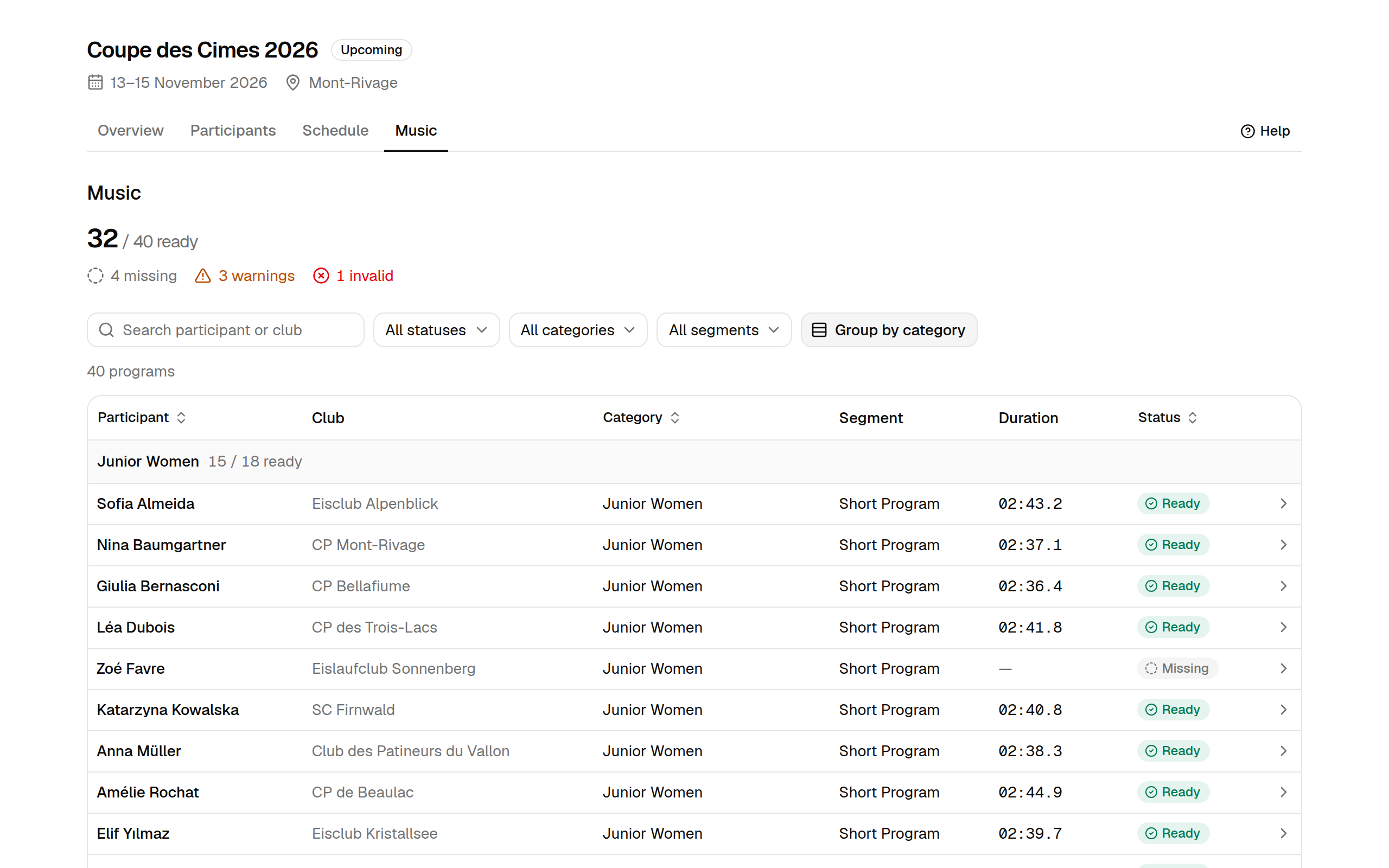
The Music tab lists every program of the competition with its music status. Use it to see where you stand and to find exactly what still needs work.
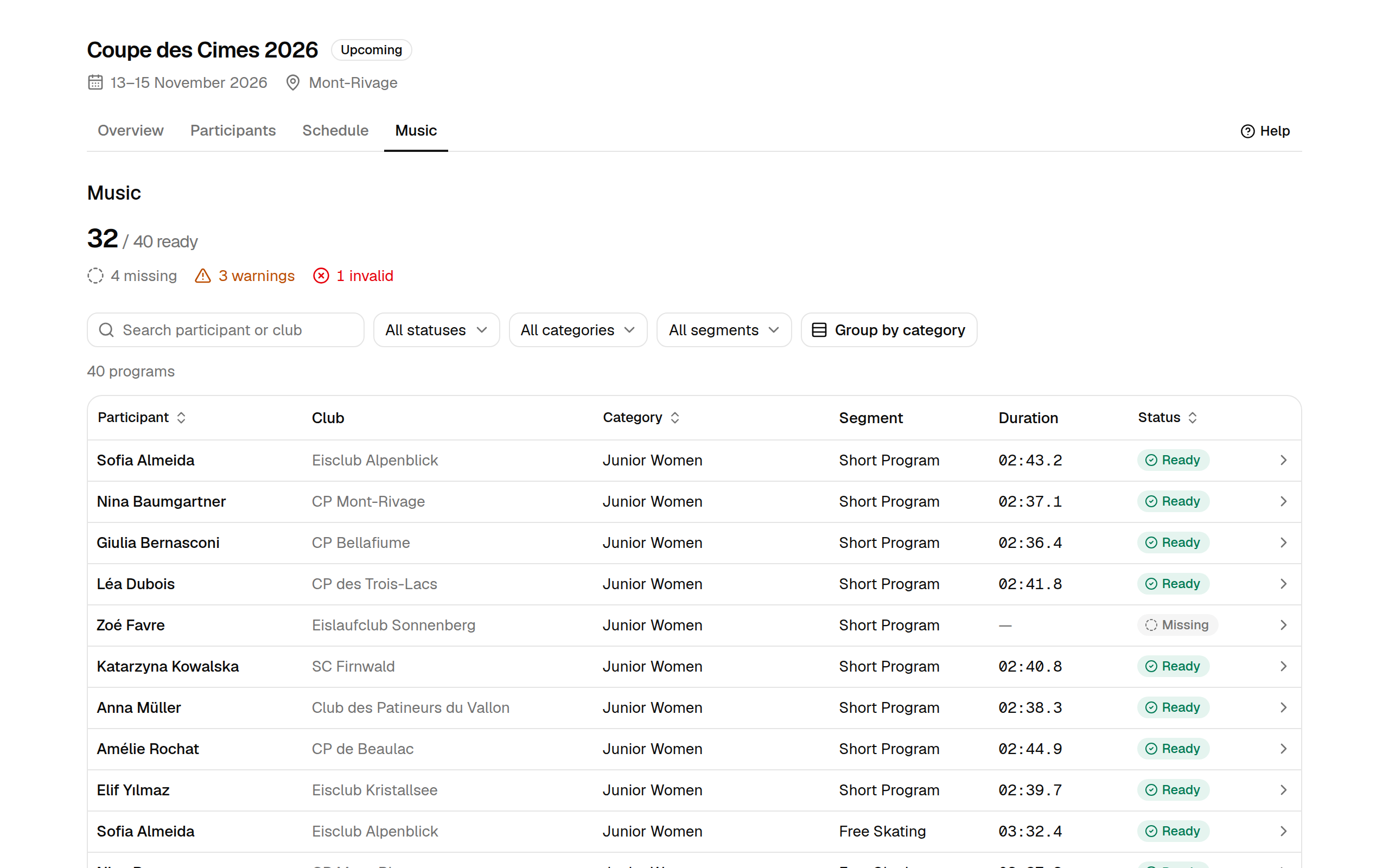
Read the summary
The large number at the top is the count of ready programs out of all programs that need music. Below it, RallyHub breaks down what is left:
- Missing — no music received yet, or the participant withdrew it.
- Warning — music received, but its duration is outside the allowed range.
- Invalid — the file received is not playable audio.
A count of zero is greyed out. Music statuses explains each status in detail.
Read the table
Each row is one program:
| Column | Shows |
|---|---|
| Participant | The skater's name — select it to open the program's details |
| Club | The skater's current club |
| Category and Segment | Which program this row is |
| Duration | The length of the current music file; — when there is none or it is unreadable. A clock-arrow icon means the music was replaced at least once |
| Status | Ready, Warning, Invalid or Missing |
By default rows follow the skating order: categories in competition order, then segments, then participants.
Find what needs work
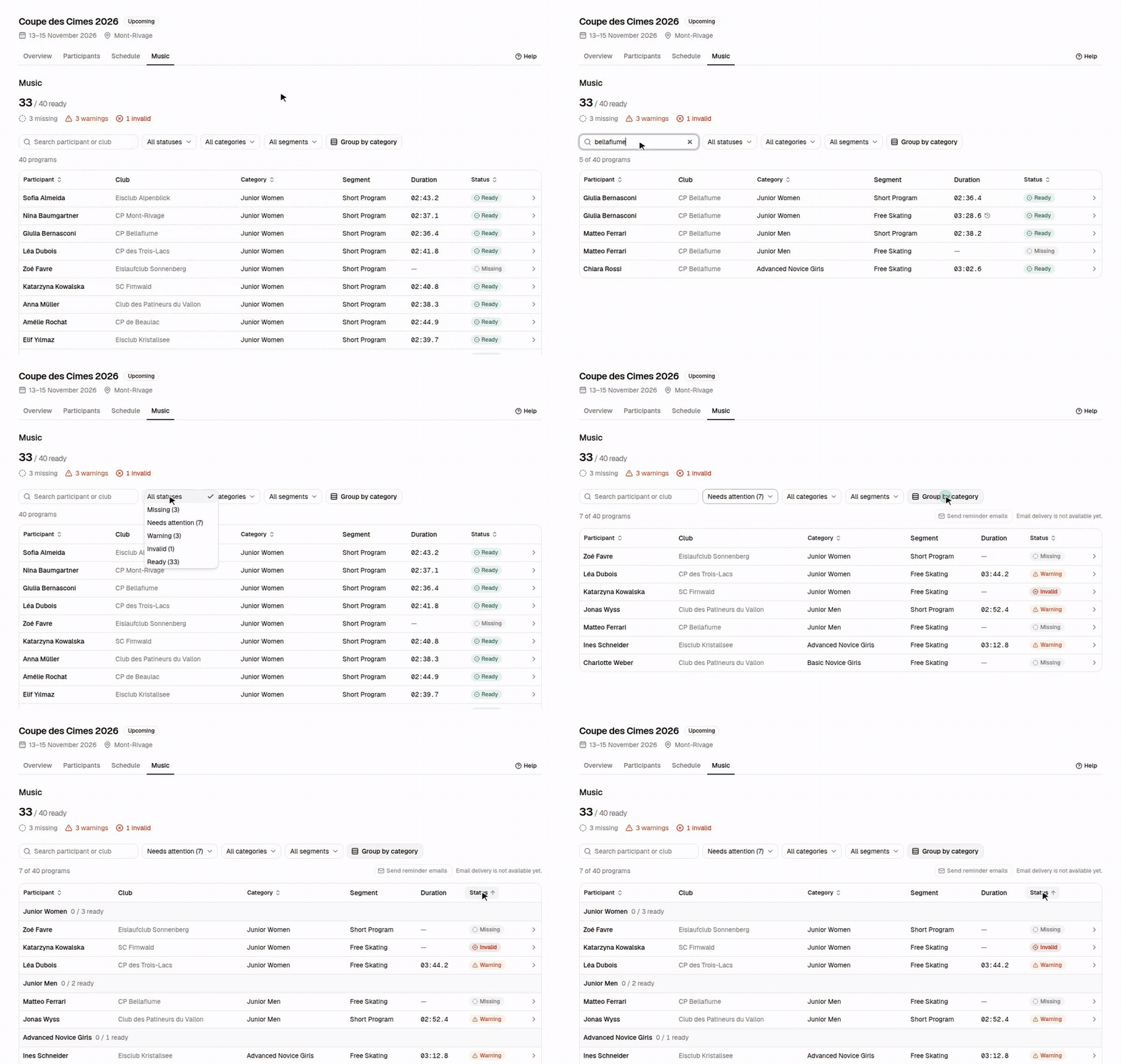

Search
Type in Search participant or club to keep only matching rows. The search
ignores capitals and accents — muller finds Müller, cp finds every
CP … club.
Filter
Three menus narrow the list down. The status menu shows how many programs have each status:
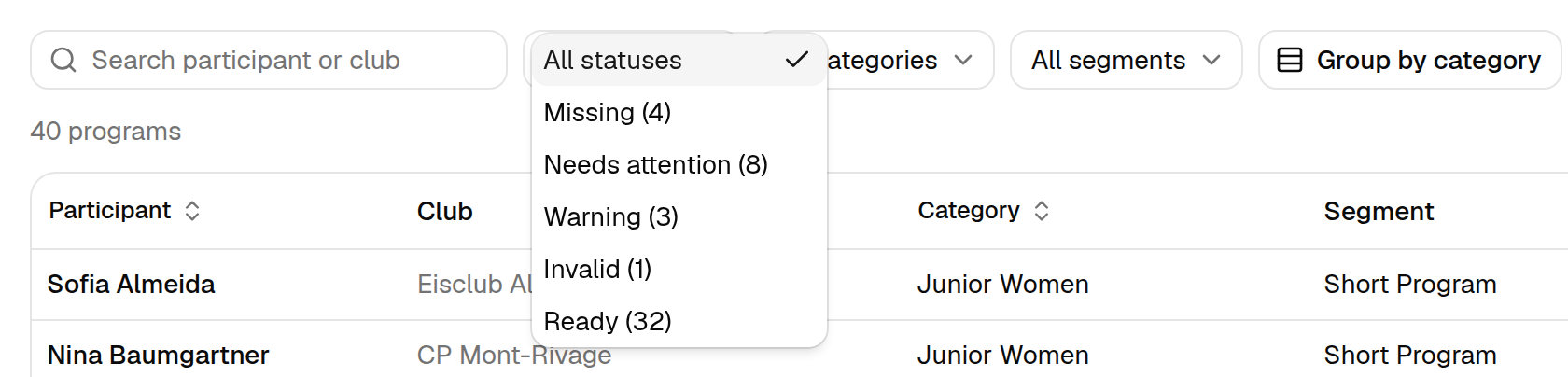
- Status — pick one status, or Needs attention to see everything that is not ready (missing, warning and invalid together). This is the list to work through before the deadline.
- Category — one category only, e.g. Junior Men.
- Segment — one segment across all categories, e.g. every Short Program.
The line above the table shows how many programs match, e.g. 8 of 40 programs. When nothing matches, select Clear filters.
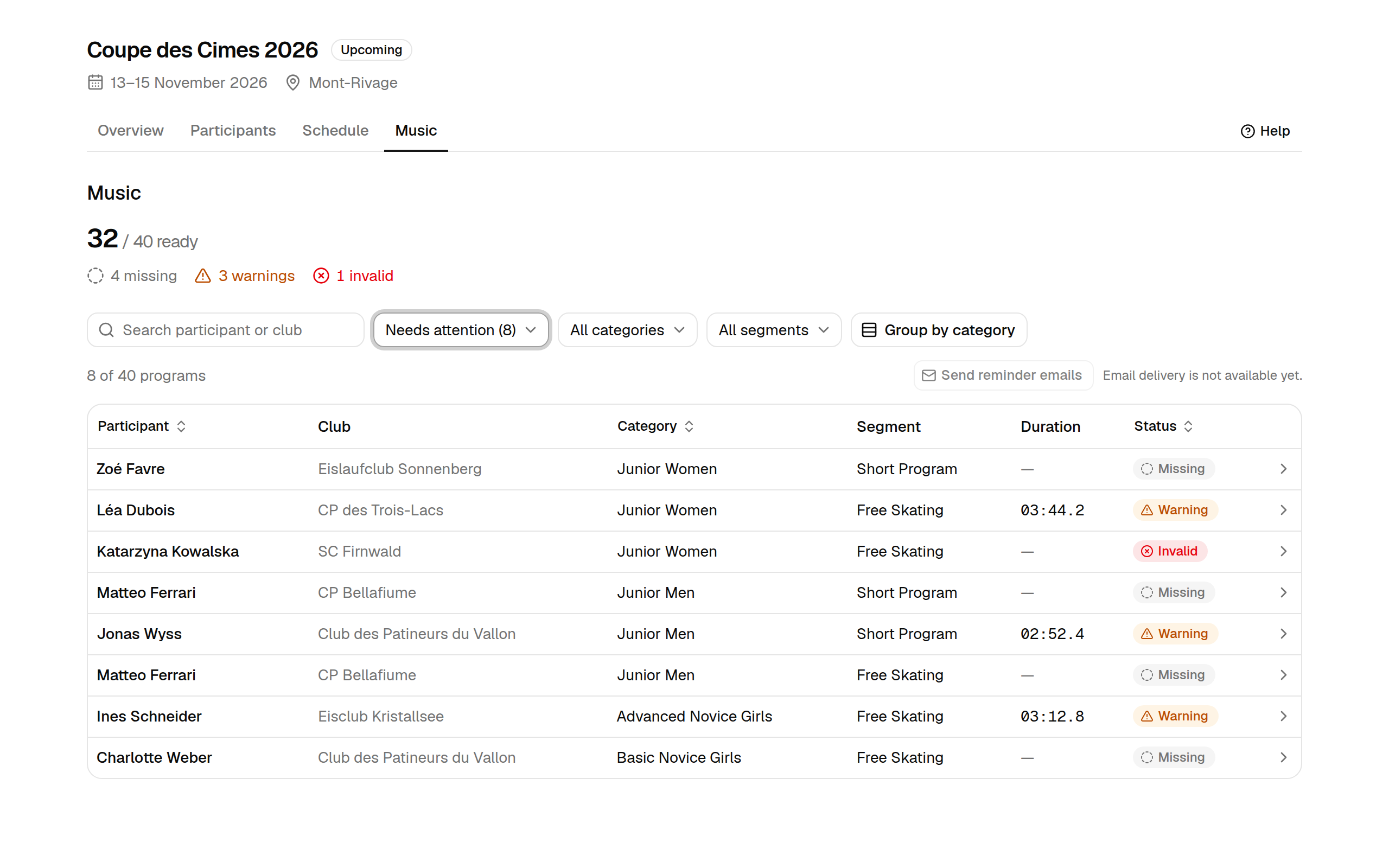
Group by category
Select Group by category to split the table into one block per category. Each block header shows that category's progress, e.g. Junior Women 15 / 18 ready. Select the button again to go back to one list.
Sort
Select the Participant, Category or Status column header to sort by it; select it again to reverse the order. Sorting by status puts problems first: missing, then invalid, then warning, then ready. When the table is grouped, sorting applies within each category.
Open a program
Select a participant's name to open that program's details: the file, its checks, a download button and the version history. See Review a program's music.